Backup or copy Outlook signatures
Don't you just hate recreating your signatures after a reinstall or workstation switch? So do I, that's why after my recent workstation switch I decided to figure out how to do this the easy way.
Open Outlook and go to File > Options > Mail

Now click on the Signatures button while holding the CTRL key on your keyboard. This opens your Signatures folder in your profile (C:\Users\<username>\AppData\Roaming\Microsoft\Signatures in windows 7)
Copy all the files in that folder. These files contain all versions of your signature. Do the same on your new workstation and place the copied files from your old workstation there. You now have copied your signature to your new workstation. All you need to do now is assign the signature(s) to the different message types and you should be done.
Calendar sharing is not available
I had a user coming up to me saying that she couldn't send calendar requests anymore. The error was: "Calendar sharing is not available with the following entries because of permission settings on your network". As all mailboxes had just migrated to the Exchange 2010 server this could be anything. However a blog post from Nubby Admin saved me a lot of work.
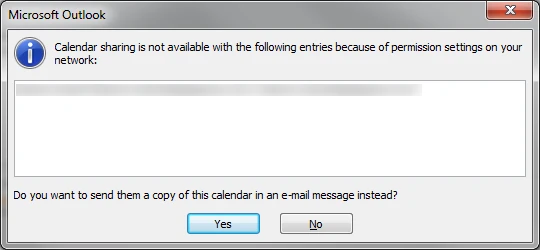
The error was caused by an outdated entry in the user's autocomplete list. After using the GAL to select the recipient all went well. I also instructed her to clear her autocomplete list.
Error sending e-mail to migrated mailbox
During our migration I ran into an error while sending e-mail to a mailbox that was just migrated.
#550 5.2.0 STOREDRV.Deliver: The Microsoft Exchange Information Store service reported an error. The following information should help identify the cause of this error: "MapiExceptionUnconfigured:16.18969:C4000000, 17.27161:0000000094000000000000000000000000000000, 255.23226:00000000, 255.27962:FE000000, 255.17082:1C010480, 0.26937:00000000, 4.21921:1C010480, 255.27962:FA000000, 255.1494:00000000, 255.26426:FE000000, 4.7588:0F010480, 4.6564:0F010480, 0.56333:0B004A66, 4.6372:05000780, 4.6276:05000780, 0.18684:02010480, 4.2199:78040000, 4.2770:05400080, 4.29385:1C010480, 4.8620:1C010480, 255.1750:0F010480, 0.26849:0F010480, 255.21817:1C010480, 0.26297:0F010480, 4.16585:1C010480, 0.32441:0F010480, 4.1706:1C010480, 0.24761:71040000, 4.20665:1C010480, 0.25785:0F010480, 4.29881:1C010480". ##
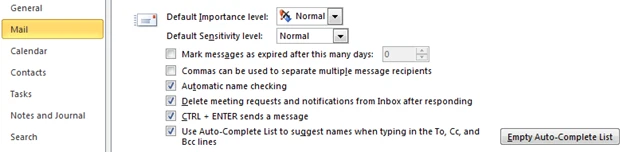
If the account hasn't properly replicated to all domain controllers, you might get this error. Forcing a replication using the Active Directory Sites and Services fixes the problem. This should trigger automatically, however replication issues might stop or slow this. Running a DCDiag and NETDiag will probably show you some problems.
Migrating a mailbox from Exchange 2007 to Exchange 2010
Moving a mailbox from one forest with Exchange 2007 to a second forest with Exchange 2010 is always scary, even after extensive testing. However you have to do it at some point. Here's what you see at both ends.
Start with the Prepare-MoveRequest.ps1 command:
.\Prepare-MoveRequest.ps1 -Identity <distinguishedname remote user account> -RemoteForestDomainController <remote dc> -RemoteForestCredential $RemoteCredentials -LocalForestDomainController <local dc> -LocalForestCredential $LocalCredentials -LinkedMailUser -TargetMailUserOU <distinguishedname local ou> }
When successful, run the New-MoveRequest command:
New-MoveRequest -Identity <distinguishedname local user account> -RemoteLegacy -RemoteGlobalCatalog <remote dc> -RemoteCredential $RemoteCredentials -TargetDeliveryDomain <domain.local>

This will queue the MoveRequest and if there are no other MoveRequests running, it'll change to InProgress and start moving the data. When it's all done it will show that it's completed.
During the data move the mailbox can remain open. The changes made during the move will be copied afterwards.
After a short while Outlook will presented the user with a dialog: "The Microsoft Exchange administrator has made a change that requires you quit and restart Outlook.". Restart Outlook and see that it's connecting to the new server and forest. Experience shows that it might take a couple of minutes for the connection to the new exchange server to be made.
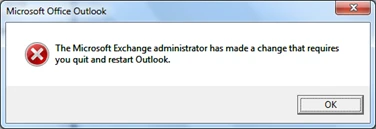
I've got to say that MS made this process quite unobtrusive! Kudos for that!
Outlook 2010 Social Connectors
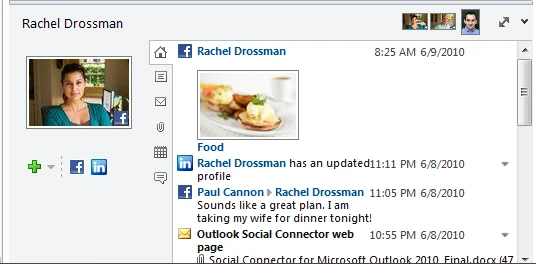
Social connectors are perhaps one of the best new features of Outlook 2010. As the name implies, they allow you to get updates on your contacts through Outlook. It started out with only 1 connector, and 3 more have been added. You can find the links below:
- LinkedIn:
- Facebook: http://www.microsoft.com/downloads/details.aspx?FamilyID=ce8b7517-234c-48a1-a655-324a88893b02&displaylang=en
- Live Messenger: http://www.microsoft.com/downloads/details.aspx?displaylang=en&FamilyID=b45b3d7f%2D22e1%2D403c%2Db0fb%2D587fd33aa6f3
- MySpace: http://www.myspace.com/msoutlook
Suppress AutoDiscover dialog in Outlook 2010
When Outlook loses connection, or when using Outlook Anywhere you'll probably see the following dialog box:
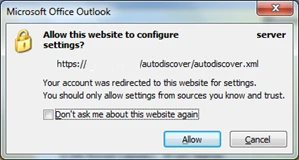
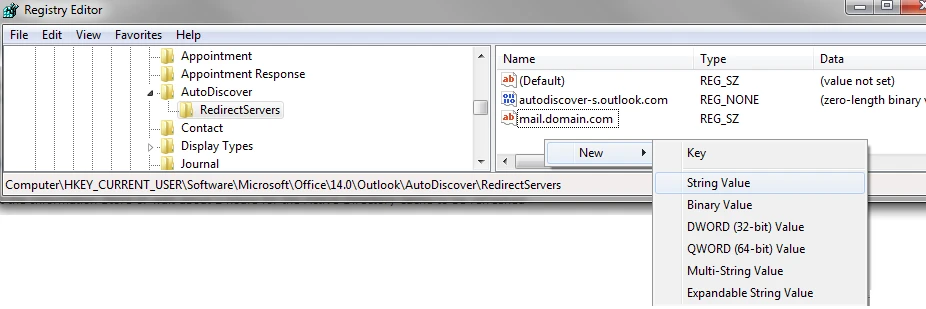
Of course you could select the "Don't ask me about this website again" box, but that's only a local override. What you can do, is suppress the window completely by making a registry edit. You'll have to navigate to the HKEY_CURRENT_USER\Software\Microsoft\Office\14.0\Outlook\AutoDiscover\RedirectServers key and add your server names as REG_SZ (String Value) leaving the data field empty. You can add as many servers as needed.
Search in Microsoft Office Outlook 2010 doesn’t return any results
I recently had a problem with Outlook 2010 which didn't return any results when performing a search. Since all search functions in Office 2010 are using the Windows Search Indexer, this had to be the problem.
If you go to Control Panel -> Indexing Options and press the Advanced button you'll see a button Rebuild. When you press this button the current index database will be deleted and Windows Search Indexer will rebuild the index. This will most probably solve the problem with the Outlook 2010 search.
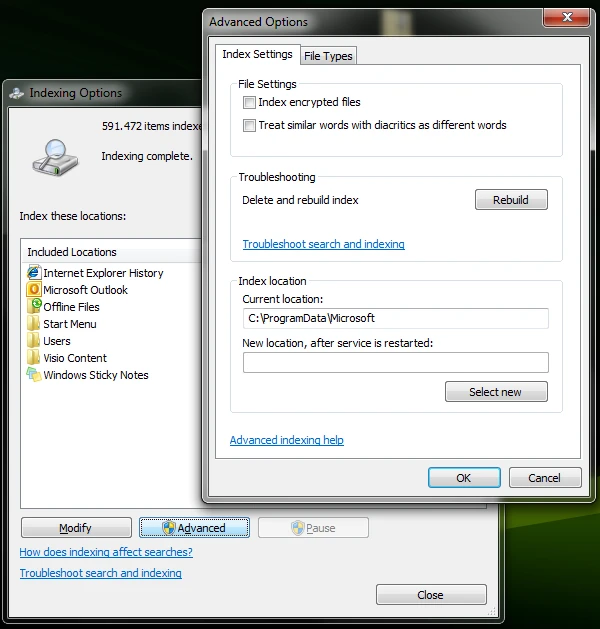
I've also seen some computers that are indexing for days, but never complete the indexing action. This can cause the computer to become really slow and might even take 100% of the CPU. Rebuilding the index might help in situations where the Windows Search Indexer is causing the 100% CPU.