25Jul/110
Word shortcut for creating blog posts
From Word 2007 Microsoft introduced the option to use Word as a blogging client for WordPress or many other blogging services. However if you blog regularly, you will be annoyed by the normal procedure.
- Start Word
- Click File > New and
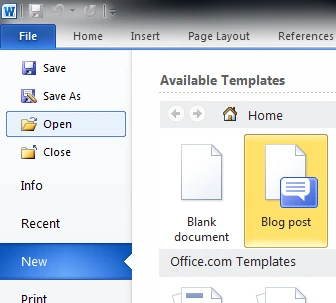
- Select Blog post
That’s a bit too much clicking (or too many shortkeys) for lazy me. That’s why I wanted to shorten this process; here’s how.
- Find the location of winword.exe
C:\Program Files\Microsoft Office\Office<version>\WINWORD.EXE
Word 2007: 12
Word 2010: 14 - Find the location of Blog.dotx
C:\Program Files\Microsoft Office\Templates\<language ID>\Blog.dotx
English – US: 1033
Dutch – NL: 1043
German – DE: 1031
Find your language ID here: http://technet.microsoft.com/en-us/library/cc179219.aspx - Rightclick your desktop and select New > Shortcut
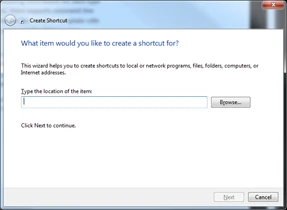
- Enter the following location:
"<location winword.exe>" /q /t"<location Blog.dotx>"<br/><strong>"C:\Program Files\Microsoft Office\Office14\WINWORD.EXE" /q /t"C:\Program Files\Microsoft Office\Templates\1033\Blog.dotx"</strong>
- Enter a suitable name for the shortcut like Microsoft Word 2010 - Blog
- Click Finish
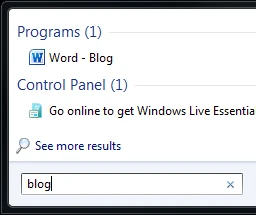
I added the shortcut to my start menu in the Microsoft Office folder. This way I can type blog after pressing the Windows Key followed by an enter to start Word with the blog template.


Enjoy this article?
Consider subscribing to our rss feed!
August 9th, 2011 - 02:13
great tip, thanks
October 24th, 2011 - 20:07
thank for sharing. ^_^
October 25th, 2011 - 08:09
You’re welcome!